

Enabling Human Handover
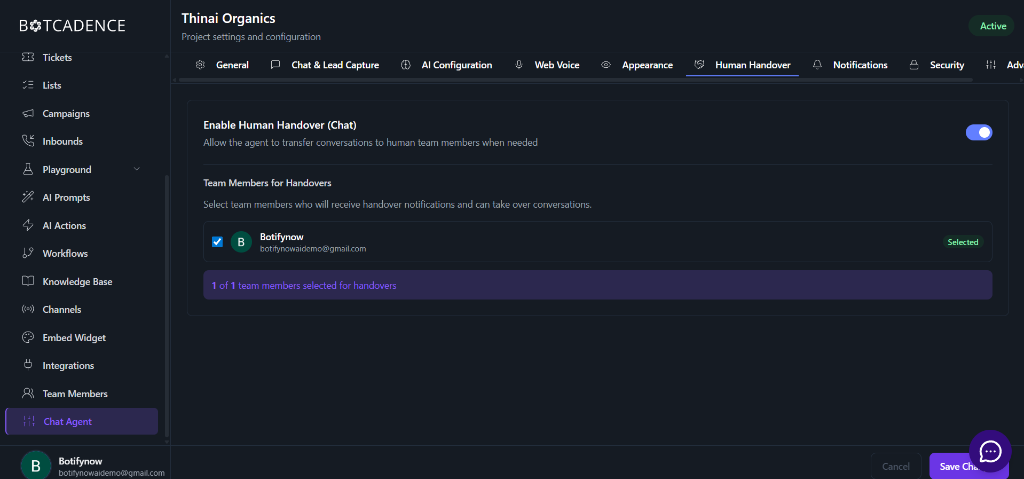
To start using human handovers, you first need to enable the feature and designate team members who will handle these requests.Select Team Members
Choose the team members who should receive handover notifications. Only selected members will be able to see and take over conversations from the handover queue.
Managing Handovers
Once enabled, you can monitor and participate in conversations requiring human intervention.Viewing Active Handovers
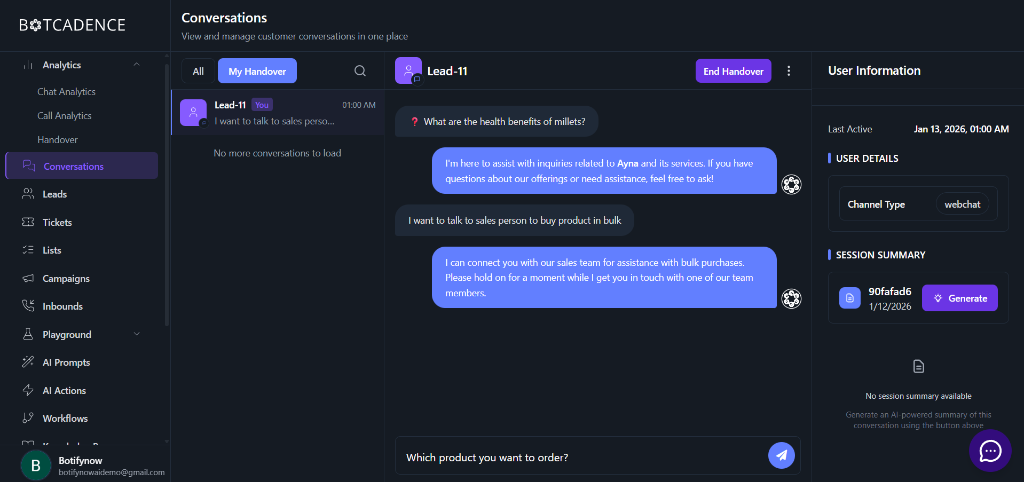
All conversations that have been handed over to humans can be found in the Conversations section.- Navigate to Conversations in the left sidebar.
- Click on the My Handover tab. This will filter the list to show only the conversations assigned to you or waiting for a human agent.
Taking Over a Conversation
When you select a conversation from the My Handover list:- The AI agent stops responding to that specific user automatically.
- You can type your messages in the chat box at the bottom and click the Send icon.
- The user will receive your messages directly, allowing for a personalized support experience.
Ending a Handover
Once the user’s query has been resolved, you should close the handover session to allow the AI to take back control or to mark the session as completed.- Click the End Handover button located at the top right of the conversation window.
- This will return the conversation to the AI agent (if configured) or simply close the active human intervention.
Handover Analytics
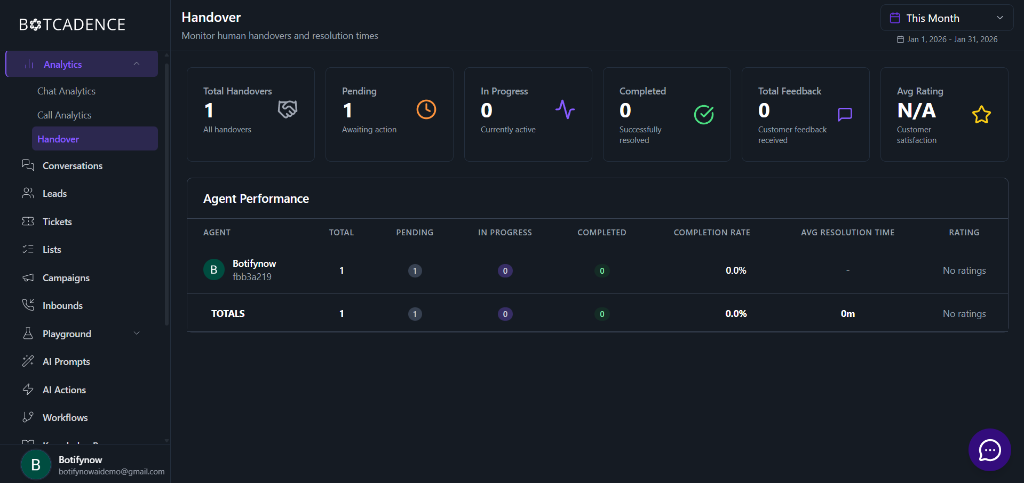
Monitor your team’s performance and understand how often human intervention is required through the Handover Analytics dashboard. Navigate to Analytics > Handover to view detailed metrics:- Total Handovers: Total number of times a human took over a conversation.
- Pending: Handovers currently waiting for an agent to respond.
- In Progress: Conversations currently being handled by human agents.
- Completed: Successfully resolved handover sessions.
- Agent Performance: A breakdown of how each team member is performing, including resolution times and customer ratings.
Regularly reviewing handover analytics helps you identify common “bottlenecks” where the AI might need better training or revised prompts.